How to turn handwriting into text on an iPhone or iPad
· 5 min
An iPhone can read text out of a photo with nothing installed. For handwriting it is hit and miss, but it costs nothing to try, so start here.
Live Text: copy text from a photo
Live Text works on iPhone XS, XR and later with iOS 15 or newer, and on recent iPads. If it is off, turn it on under Settings → General → Language & Region → Live Text.
- Photograph the page in good light, square on.
- Open the photo in Photos.
- Press and hold a word, then drag the handles to select what you want, or tap Select All.
- Tap Copy and paste it wherever you need it.
You can skip the photo: in the Camera app, point at the page and tap the Live Text button that appears in the corner. Apple’s guide has the details.
Scan Text: type a page straight into a note
- Open a note in Notes.
- Tap the attachment (paperclip or camera) button, then Scan Text.
- Point the camera at the page. The text it recognises appears in the note; tap Insert.
Scan Documents, in the same menu, saves the page as a picture. Notes search then looks inside scanned documents and handwriting, in the languages Apple supports (Apple’s guide to scanning).
On an iPad with Apple Pencil
Handwriting written in Notes with a Pencil is searchable there, and you can select it and choose Copy as Text. Scribble converts as you write in any text box. Both are for writing done on the iPad, not for paper.
How well does it read handwriting?
Live Text was built for printed text: signs, receipts, documents. Apple’s own page doesn’t mention handwriting at all. In practice clear, separate letters often come through; joined-up or hurried writing comes back with missing lines and wrong words. And there are structural limits whatever your handwriting is like:
- You get a clipboard, not an archive. Nothing is kept beside the page.
- It works one photo at a time.
- When search in Notes misses a word, you can’t see what it read or correct it.
When you want every page
If you are photographing a notebook to keep, it is worth having each page read properly once. With Searchable Ink you take the photo in the browser and the text comes back in about ten seconds, beside the page.
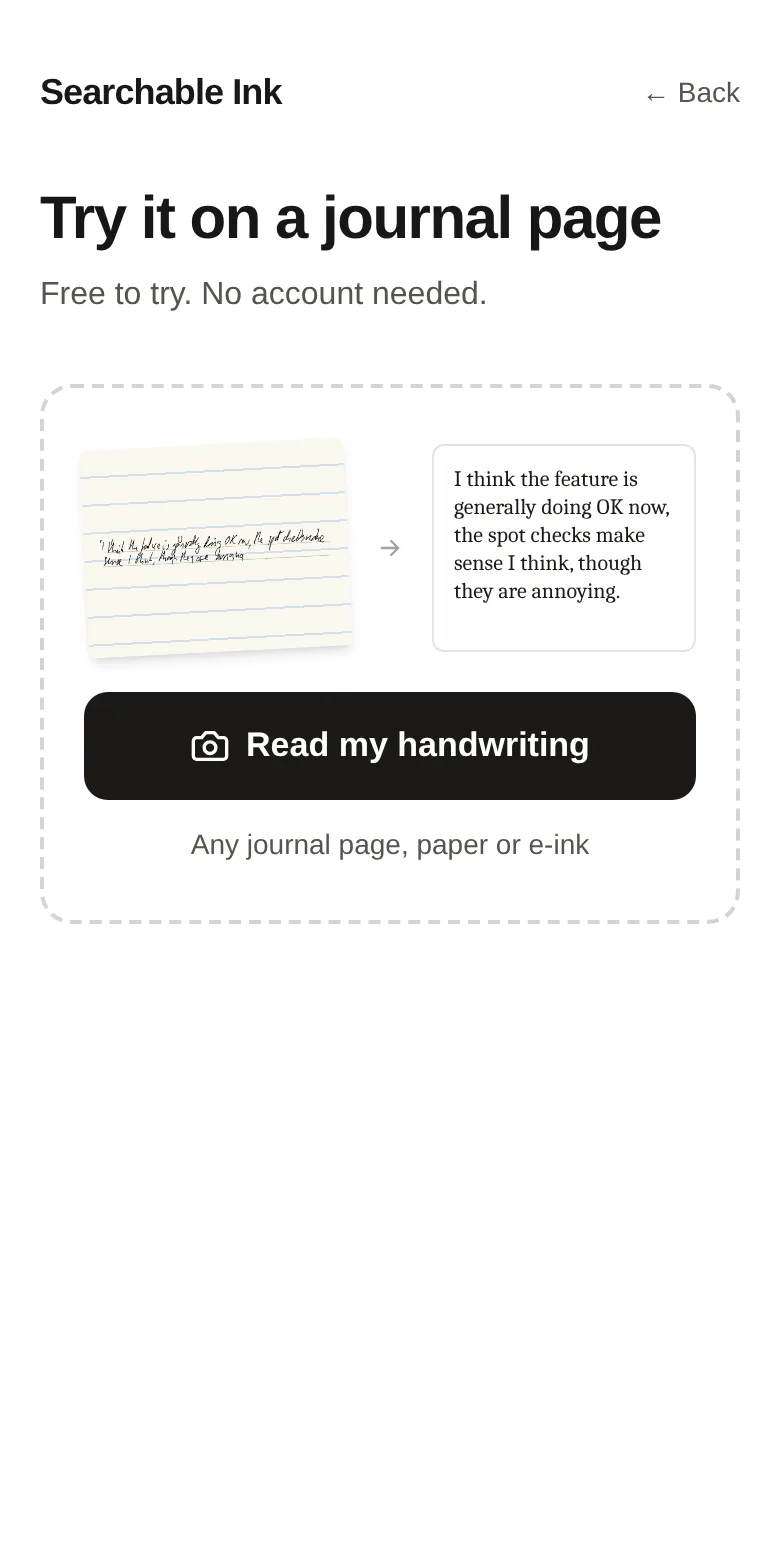
Pages you keep go into notebooks you can search from any device. More on doing a whole shelf of notebooks in how to digitise paper notebooks.