How to convert handwriting to text on a BOOX tablet
· 5 min
BOOX tablets (Note Air, Tab Ultra, Go 10.3, Note Max and the rest) can turn handwriting into text in two ways: the recognition built into the Notes app, and syncing your notebooks to a service that reads them for you. This guide covers both.
The built-in way: AI recognition in Notes
- Open the notebook in the Notes app.
- Tap the AI icon in the toolbar. The first time, choose your language and let it download.
- The page is converted to typed text, which you can edit, copy or share.
To convert only part of a page, draw round it with the lasso and tap the AI icon in the menu that appears. BOOX moves these buttons between firmware versions, so the icon may sit in the toolbar or in the side menu on yours.
Where it falls short
- One notebook at a time. Nothing converts your whole library, and searching handwriting needs a notebook recognised first.
- The text is a copy. Add a page tomorrow and the converted text doesn’t know.
- Fast handwriting. Print-style writing converts well. Joined-up or hurried pages need a lot of fixing.
- It stays on the tablet. Finding something from your phone or laptop means exporting first.
The automatic way: sync, and let every page be read
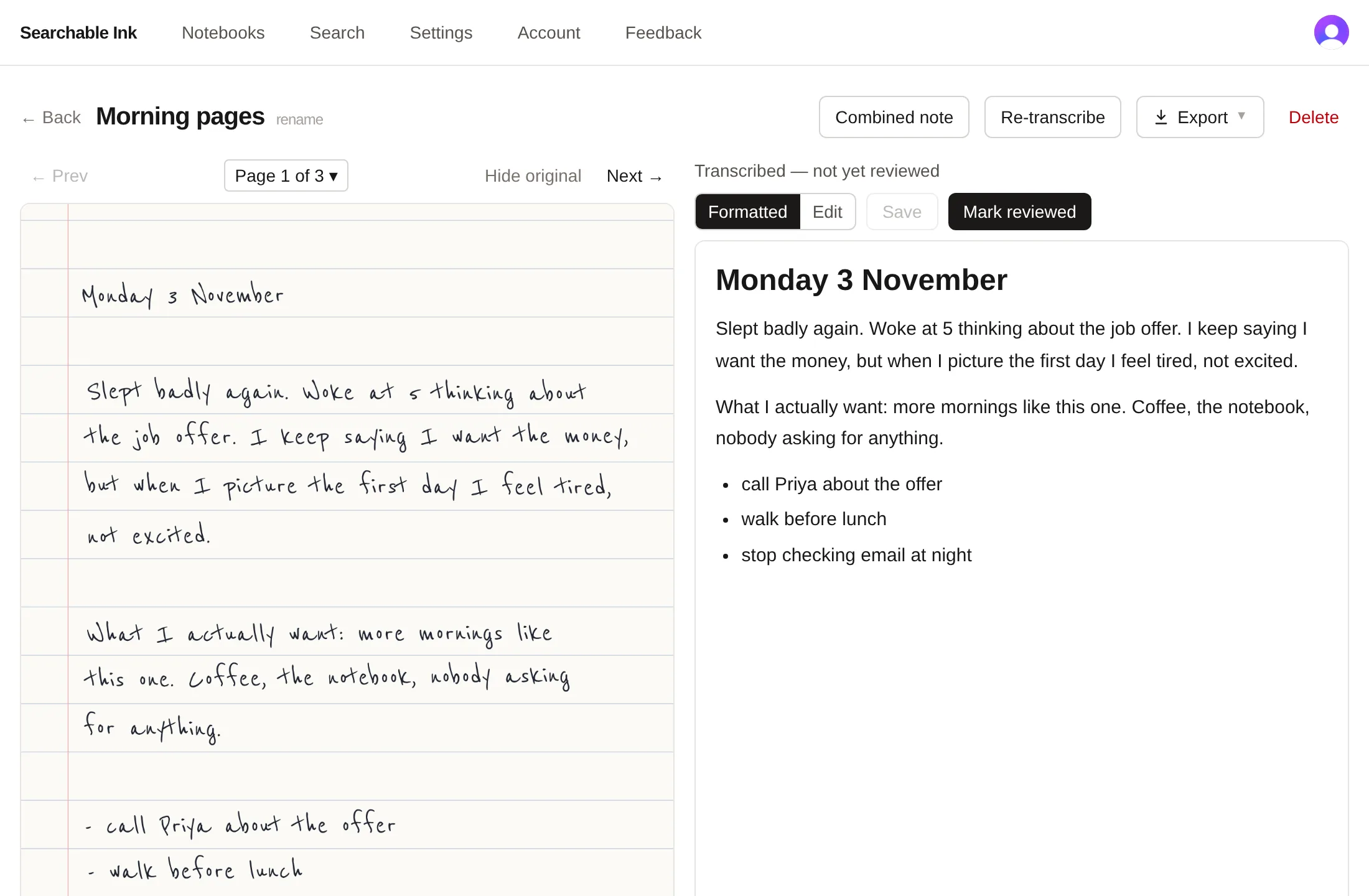
The Notes app can sync notebooks to cloud storage by itself. Searchable Ink watches that storage, reads each new or changed page, and makes everything searchable in the browser. You set it up once.
- In Notes, open ☰ → Sync Options and set the format to .note. This keeps the date each page was written, and renamed notebooks stay one notebook. PDF works too.
- Choose where to sync: Dropbox, Google Drive, or Searchable Ink’s own sync folder (Export to other apps → Accounts → Bind Account → WebDAV).
- In Searchable Ink, open Settings and connect the same place.
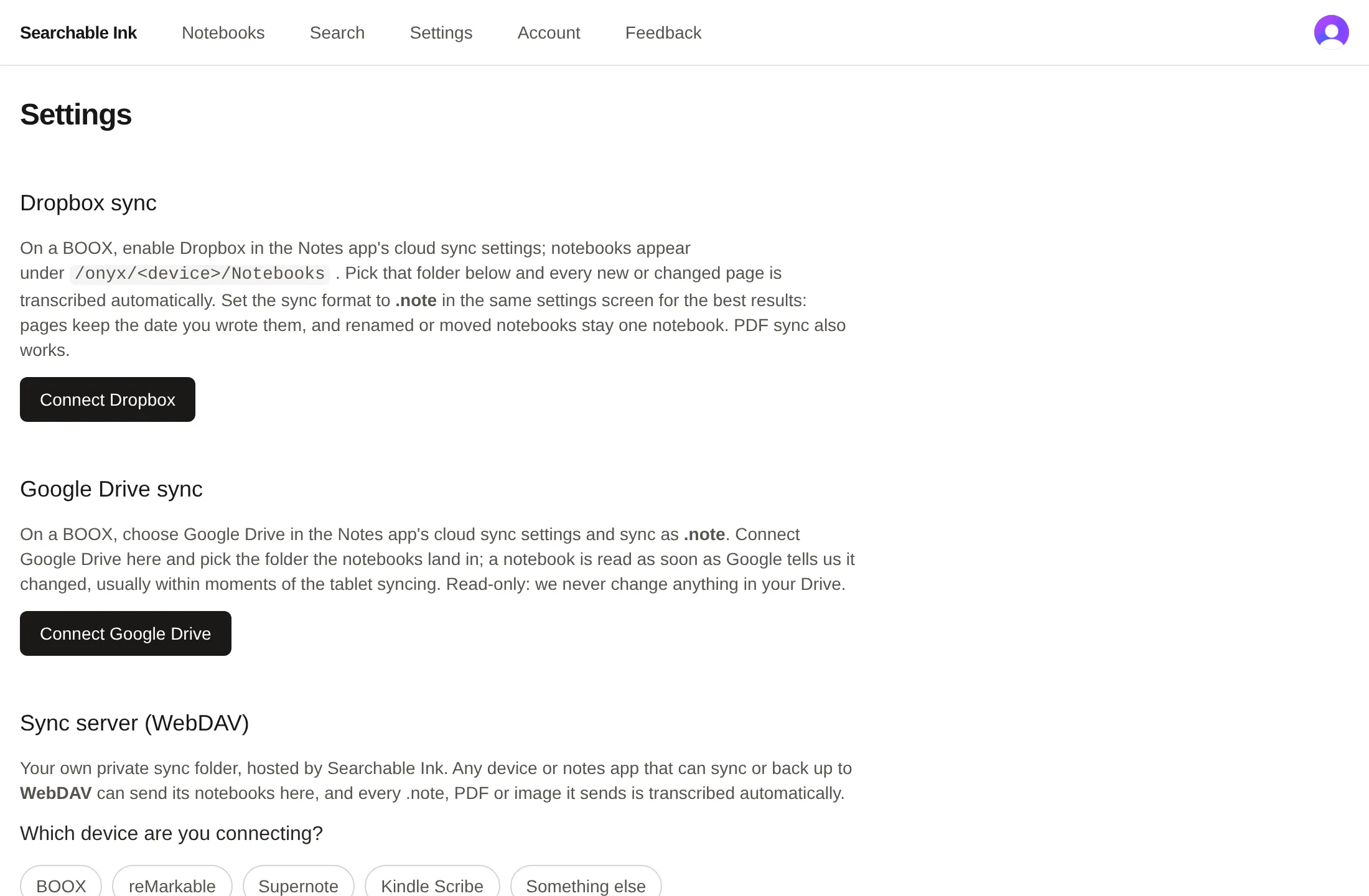
For the sync folder, the app gives you a server, username and password to paste into the BOOX form:
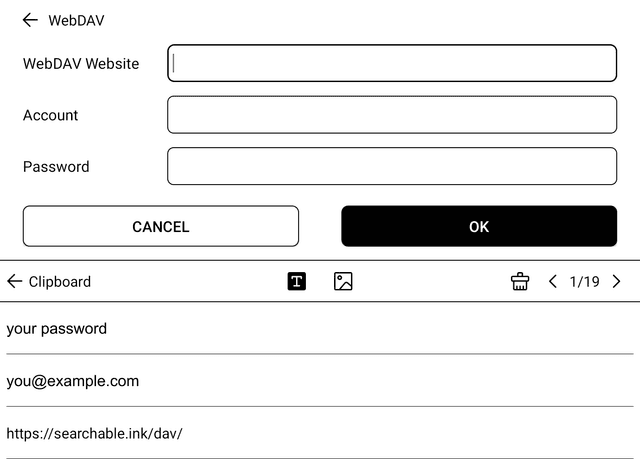
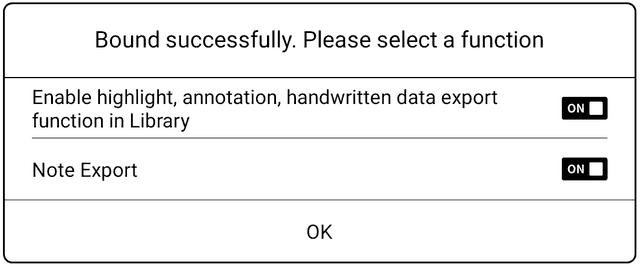
From then on, write as usual. When you close a notebook the tablet syncs it, and a few minutes later the pages are text. Editing a notebook only re-reads the pages that changed.
Which should you use?
For a page you need as text this minute, the AI button is already there. If you write most days and want to find things later, or ask an AI assistant about your notes, set up sync once and stop thinking about it.