How to convert handwriting to text on a Supernote
· 4 min
Supernote (Nomad, Manta and the older A5 X and A6 X) has two kinds of note, and only one of them recognises your handwriting as you write. Picking the right one at the start saves a lot of trouble.
Option 1: a real-time recognition note
- Tap New Note in the sidebar.
- Choose Real-Time Recognition as the note type.
- Check the language shown and change it if needed. It can’t be changed once the note exists.
- Write. Recognition runs in the background, starting about thirty seconds after you stop.
To get the text out, tap the view button in the toolbar to open Recognition Results, tap export, and choose TXT or DOCX. Handwriting in these notes can be searched on the device once it has been recognised.
Option 2: export a standard note
In a standard note, tap Export in the toolbar and choose TXT or DOCX. The note is recognised at that moment and the file is saved. The note itself stays ink.
The trade-offs
- You choose up front. The note type and its language are set when the note is created.
- Recognition pauses while you write, and the note has to stay open for it to finish.
- Search only finds what was recognised correctly. Supernote says so itself: a misread word is a word you can’t find.
- Cursive is harder. Print-style writing does best.
Making every notebook searchable
For notes you already have, or handwriting the tablet struggles with, export the note as a PDF and have each page read by a stronger model:
- In the note, tap Export and choose PDF.
- Move the PDF off the tablet. Supernote can sync its files to Dropbox or Google Drive.
- In Searchable Ink, connect that Dropbox or Drive folder under Settings, or choose Add and pick the PDF.
With the folder connected, each PDF you export shows up as a notebook, transcribed, with no upload step.
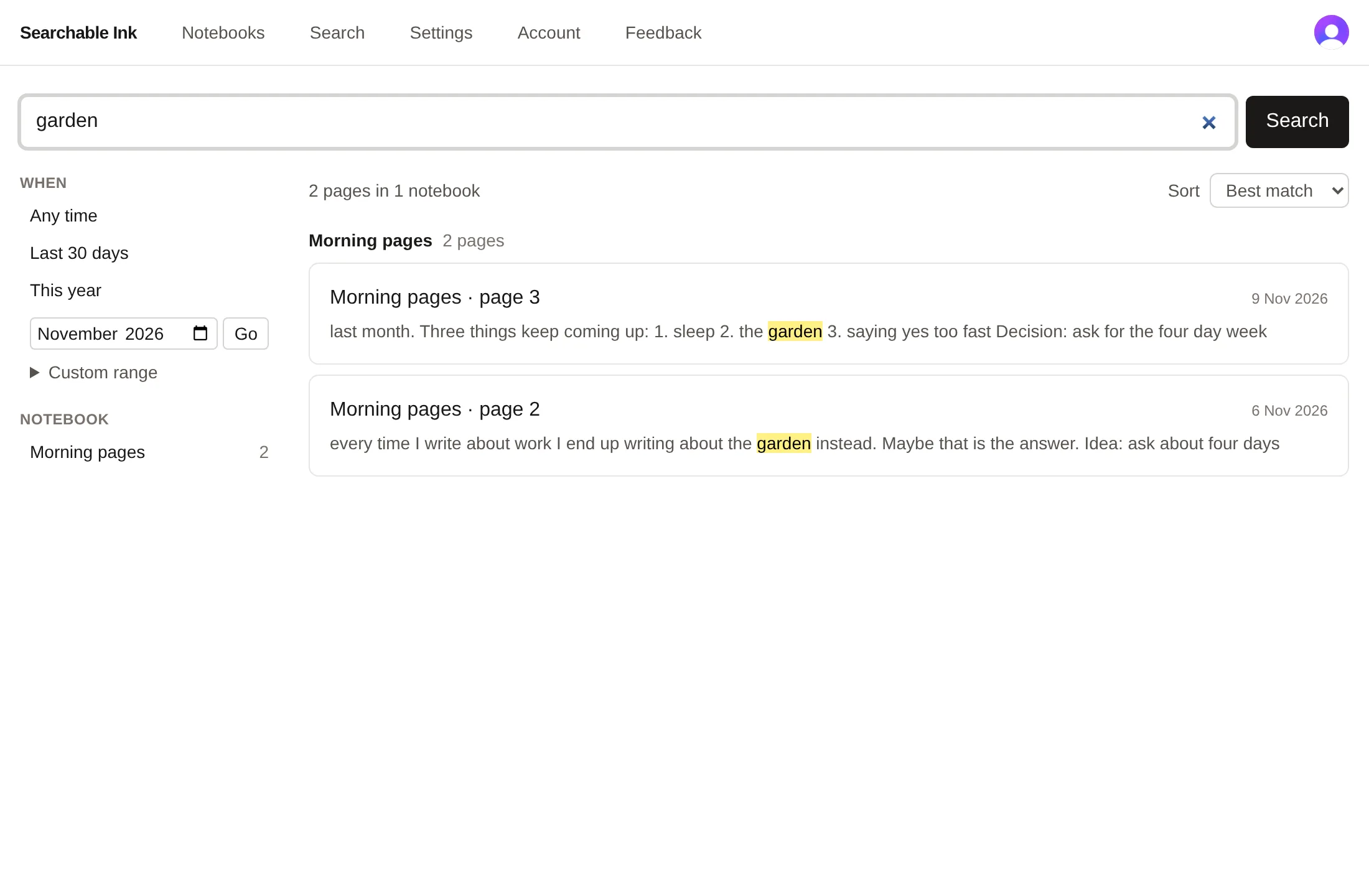
Because the text sits beside the page, a misread word can be seen and corrected, and the corrected word is what search uses.