How to convert handwriting to text on reMarkable
· 5 min
reMarkable 2 and Paper Pro can both convert handwriting to typed text on the device. There are two methods, and they do different things to your original page, so it is worth knowing which is which.
What you need
- Wi-Fi.
- To be signed in to your reMarkable account.
- Your language set under Menu → Settings → Personal → Language and keyboard → Handwriting conversion. Over thirty are supported.
Method 1: convert a page and keep the handwriting
- Open the notebook at the page you want.
- Tap the Document settings icon in the toolbar.
- Tap Convert to text.
A new page of typed text is added and your handwriting is left alone. This is the one reMarkable recommends.
For several pages at once, open Page overview, long-press the first page, tap the others, then tap Convert.
Method 2: replace a selection with text
- Tap the Selection tool and draw round the handwriting.
- Tap the handwriting conversion icon (a lowercase “a”).
The typed text takes the place of the handwriting on the same page. The ink is gone, so use this only when you no longer want it.
What it reads, and what it doesn’t
According to reMarkable’s own guide, block letters, cursive and bullet points convert; mathematical notation and diagrams don’t. You can edit the result with the on-screen keyboard or Type Folio, and send it by email as PDF, PNG or plain text. Converting in the desktop app needs a Connect subscription.
The catch: it is still one page at a time
Convert to text is a button you press on pages you already know you want. It doesn’t make three years of notebooks searchable, and the typed page doesn’t update when you write more.
Making whole notebooks searchable
If the goal is to find things later, export the notebook as a PDF and have every page read:
- On the tablet, or in the reMarkable desktop or mobile app, share or export the notebook as a PDF.
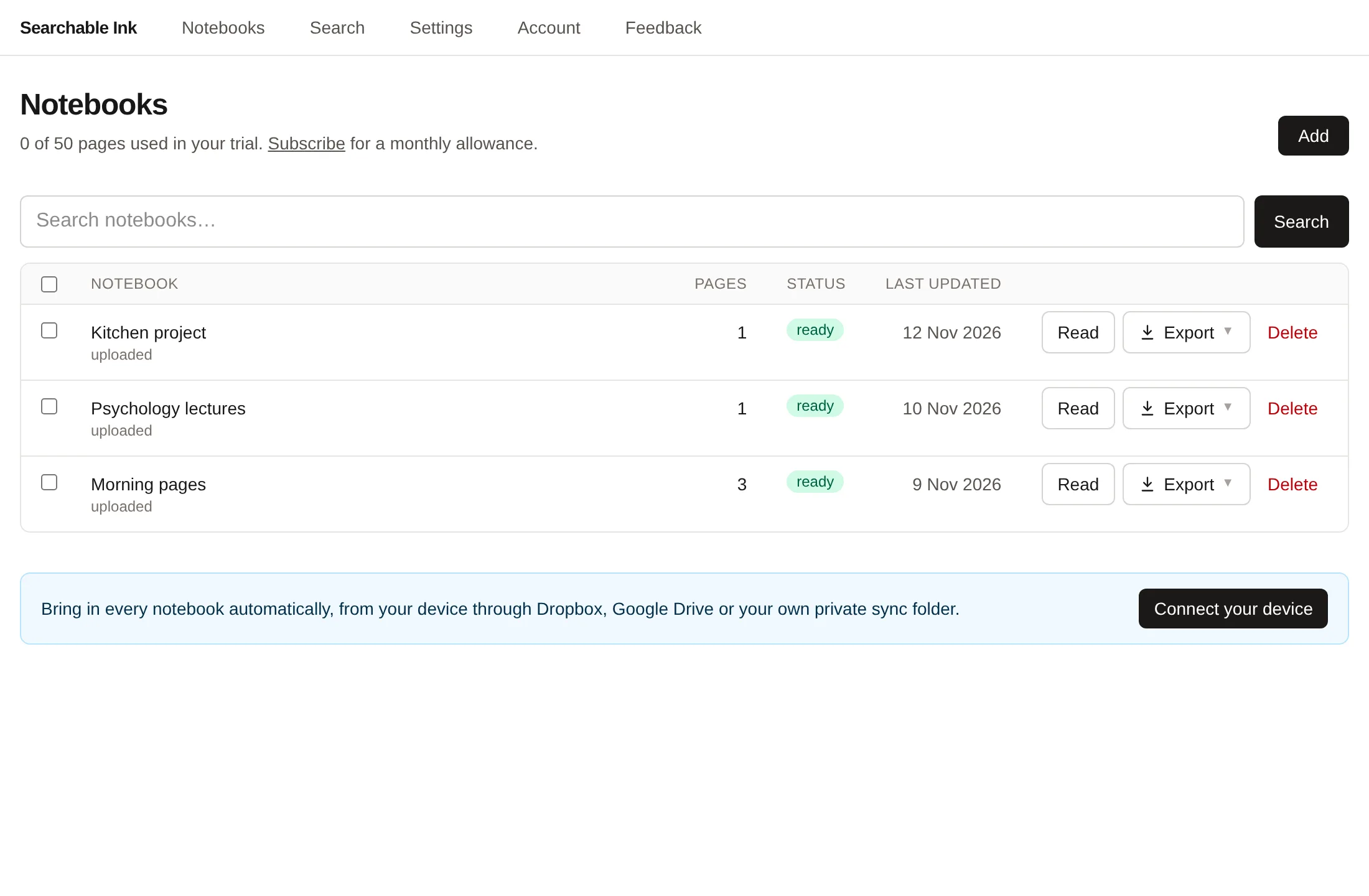
- In Searchable Ink, choose Add on the Notebooks page and pick the PDF.
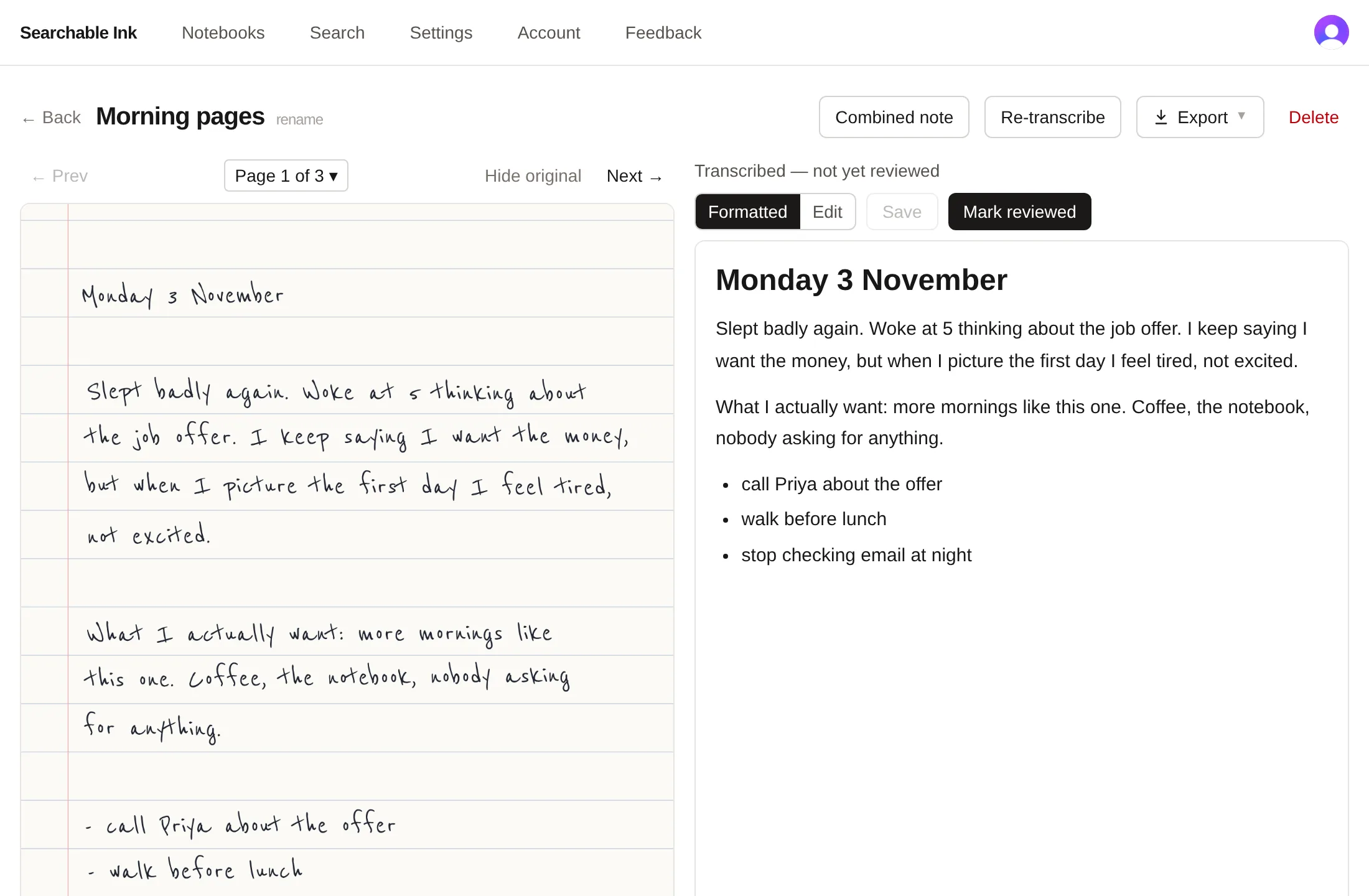
- Each page is transcribed and shown beside its handwriting. Search covers every notebook you have added.
Add a newer export of the same notebook later and only the pages that changed are read again. reMarkable doesn’t sync notebooks to other services by itself, so the export is by hand. If you have its Dropbox integration set up, send the PDF there from the tablet and connect that folder in Settings: it is picked up with no upload.