How to convert Kindle Scribe handwriting to text
· 4 min
The Kindle Scribe can convert a handwritten notebook to typed text, but only on the way out: the text is made when you share the notebook, and it never lives on the device. Here is how it works and what to do when you want more than that.
Convert a notebook to text
- On the Notebooks tab, find the notebook and open the More menu (⋮) under its thumbnail.
- Tap Share.
- Choose Convert to text and quick send to send it straight to your Amazon account’s email, or Convert to text and email to read and correct the text first, then send it to up to five addresses.
You get a .txt file. Set the language beforehand under Settings → Device Options → Language & Dictionaries → Handwriting Recognition.
What you should know
- Text only exists in the export. The notebook on the Scribe stays ink, and the converted text isn’t saved to the device.
- Plain text. Headings, lists and layout are flattened, and drawings are dropped.
- Whole notebook, by hand, each time. Write another page and you export again.
- It needs Wi-Fi. The text leaves the Scribe by email.
Recent Scribe software also adds AI summaries and tidied-up handwriting. Those change how a notebook looks; they don’t make your notebooks searchable as text.
Keeping the handwriting with the text
A .txt file in your inbox has lost its page. If a word looks wrong you can’t check it. The alternative is to share the notebook as a PDF (the same Share menu, without converting) and have the PDF read:
- More → Share, then one of the send options without “Convert to text”. The notebook arrives as a PDF.
- Save the attachment, then in Searchable Ink choose Add and pick it.
- Every page is transcribed beside its handwriting, with headings, lists and checkboxes kept.
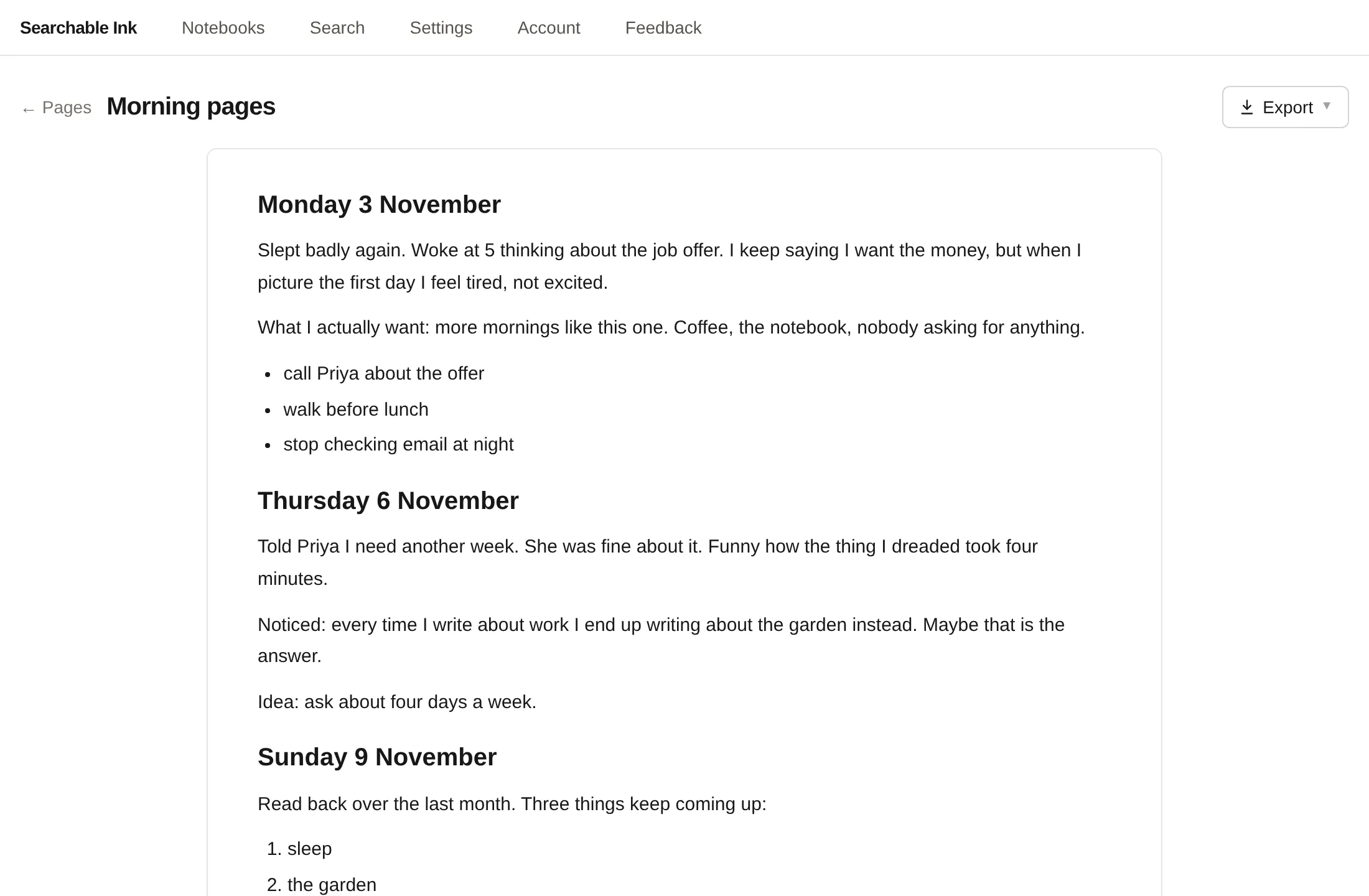
Send a newer PDF of the same notebook later and only new pages are read. Everything you have added is searchable together, on any device with a browser.