How to get handwritten notes into Notion or Obsidian
· 4 min
If your typed notes live in Notion or Obsidian, handwritten ones are the odd ones out: they sit on a tablet or a shelf, outside your links and search. Pasting in a photo doesn’t fix that, because neither app can search the words in the picture well. What you want is the page as real text, in Markdown, with its structure kept.
What a good conversion keeps
- Headings as headings, not just bigger words.
- Bullets and numbered lists.
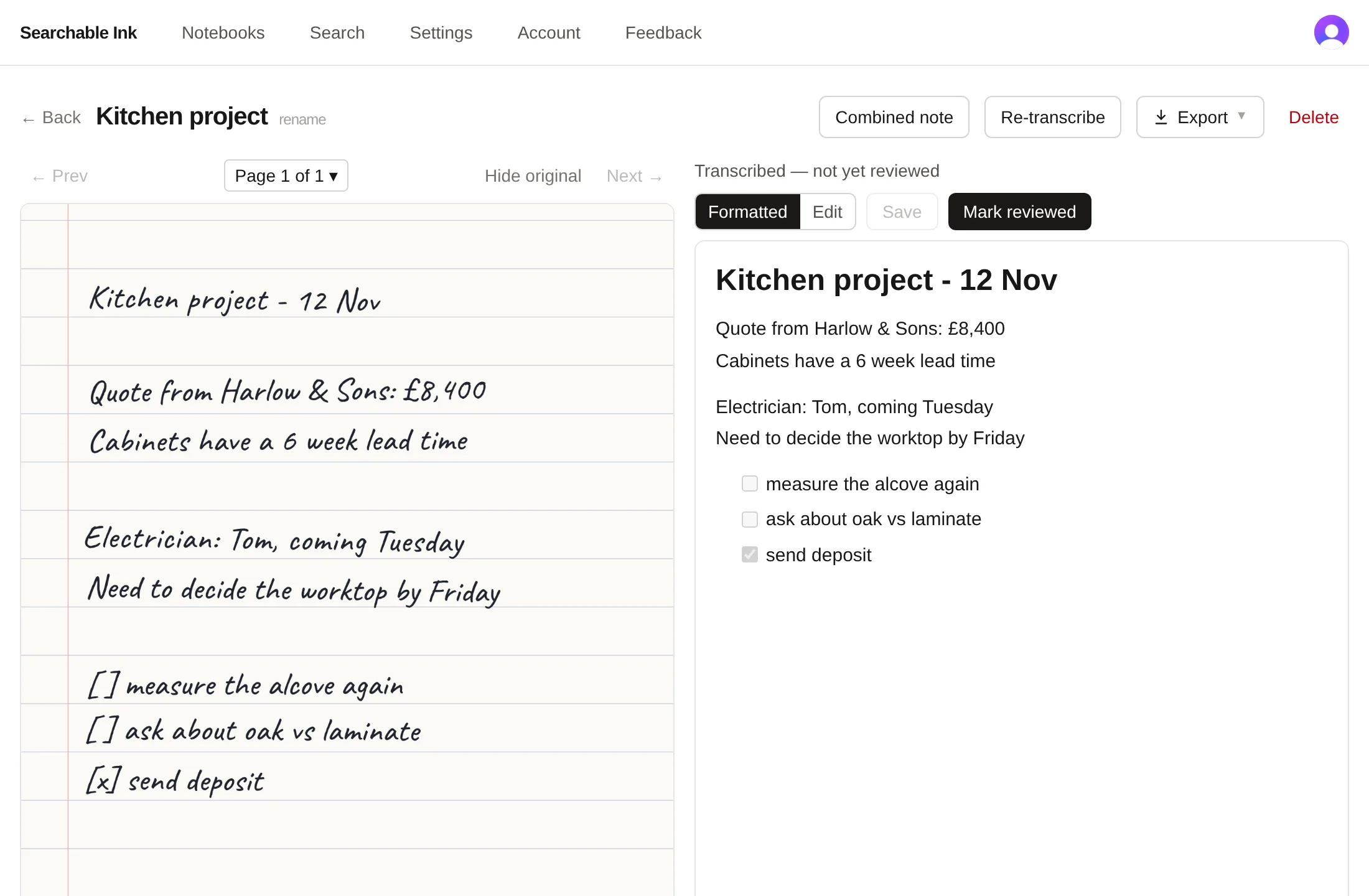
- Checkboxes, ticked or not, so tasks stay tasks.
- Underlines, highlights and crossings-out.
- Tables, where you drew one.
Plain OCR gives you a block of words. A page read as Markdown drops into either app looking like something you typed.
Notion: connect once, kept in sync
- In Searchable Ink, open Settings → Notion and choose Connect Notion.
- Pick the Notion page it should live under.
- A “Searchable Ink notebooks” database appears, with one page per notebook.

Each notebook becomes proper Notion blocks: headings, to-dos, lists, quotes and tables. When you write a new page on your tablet, or correct a word, the Notion page updates. It is one-way: edits made in Notion aren’t sent back.
Obsidian: Markdown files in your vault
- Open a notebook and choose Export → MD. For several notebooks, tick them in the list and export together.
- Move the
.mdfiles into your vault folder.
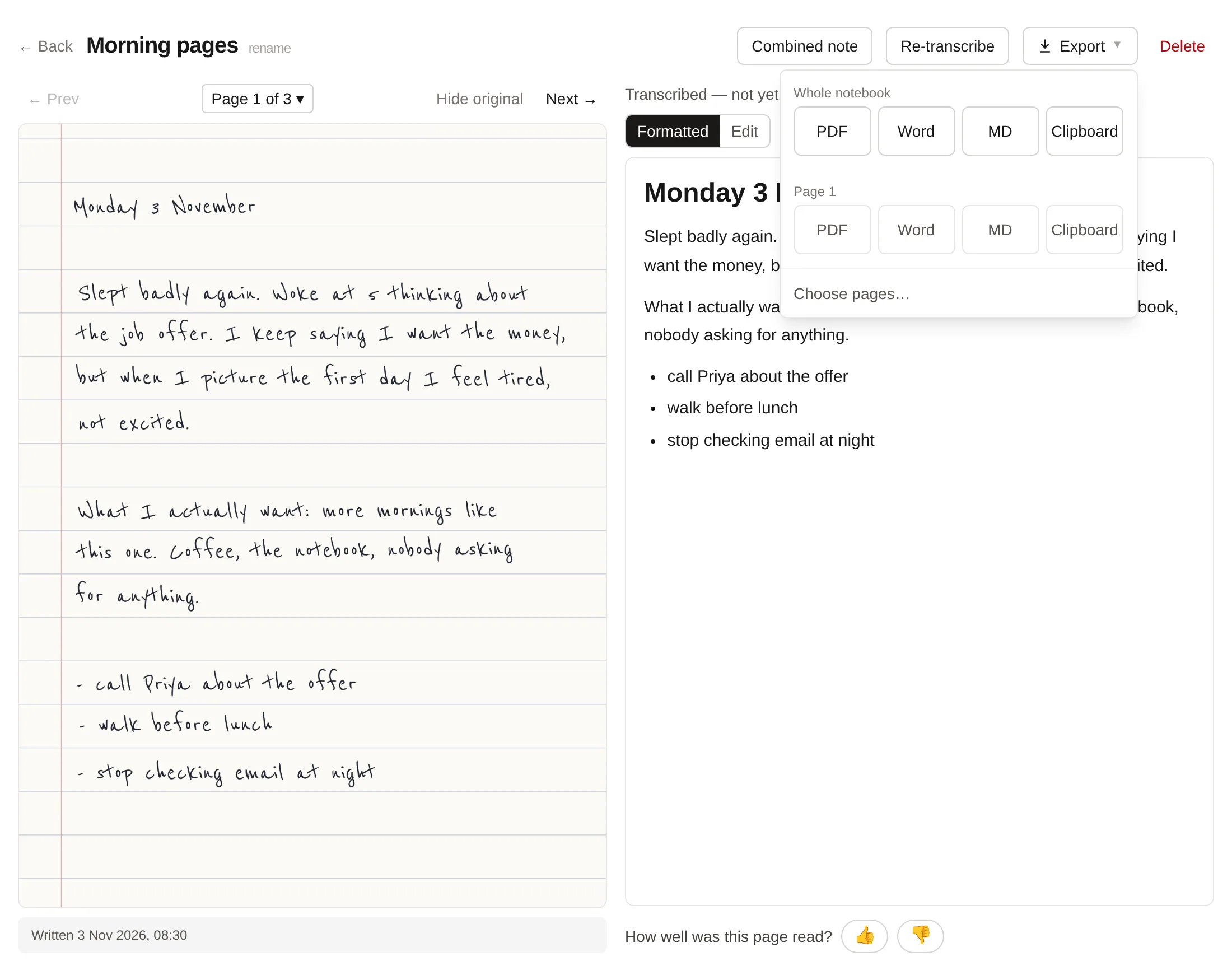
Each file has a section per page, so you can link to [[Morning pages#Page 2]]. Checkboxes show up in Obsidian’s task queries, and the text is found by its search like any other note.
Anything else
The same export gives Word and PDF, and Clipboard copies a page or a whole notebook as text for pasting into Logseq, Apple Notes, an email, or wherever you work.
A sensible routine
- Write by hand where you think best.
- Let pages arrive automatically: tablet sync, or a photo of a paper page.
- Read handwritten and typed notes side by side in the app you already use.